Wednesday, 20 September 2017

iPhone X Layout Introduction

iPhone X Layout Introduction


When Apple revealed the iPhone X with a top “notch” and bottom home screen indicator the reason behind some SDK changes at WWDC 2017 became clearer. Safe area layout guides may help but there are still some gotchas for table/collection views and the search bar.

Safe Area Layout Guide

Apple added the safe area layout guide in iOS 11 replacing the top and bottom layout guides with a single guide. Here is what the safe area looks like on an iPhone 8 in portrait with just a top status and navigation bar:

iPhone 8 portrait

The safe area allows for a status bar (20 points) and navigation bar (44 points) at the top and a tab bar or tool bar at the bottom. Here is what happens to the safe area when we rotate the device to landscape:

iPhone 8 landscape

The system hides the status bar in landscape and the navigation bar has a smaller height of 32 points. Notice how the left and right insets are always zero. Now compare how this works with the iPhone X. First in portrait:

iPhone X portrait

The iPhone X has a taller aspect ratio. The status bar has grown to allow for the center housing (“the notch”) and rounded corners. This increases the top inset to 88 points.
Apple replaced the physical home button with a swipe up gesture and overlays a home control indicator at the bottom of the screen. This means our safe area now has a 34 point inset at the bottom (more if we add a tab bar or tool bar).
The biggest change happens when we rotate to landscape. It does not matter if the notch is on the left or right. Each side now has a 44 point inset:

iPhone X landscape

If you support landscape on the iPhone make sure you test on the iPhone X.

Supporting The iPhone X

If you are lucky linking against the iOS 11 SDK may be all you have to do. Your chances of being lucky grow if you stick to standard UIKit controls and you already adopted safe area layout guides after WWDC 2017 (and use a launch storyboard). The reality is likely to be different. Here is a list of problem areas I have seen so far:

Controls too close to screen edges

If you are not using safe area layout guides or layout margins there is a good chance your controls will end up too close to the device edges. The rounded edges, top central housing or bottom home indicator can clip, hide or overlay controls that would be fine on other iPhone models.
For example a button positioned 8 points in from the bottom and left edges of the superview. The rounded corners clip the button and the home control indicator covers it.

Clipped button

Move controls away from the edges on the iPhone X. Use the safe area layout guide and layout margins guide when creating constraints (use safeAreaIsets or layoutMargins if setting frames manually):
let margin = view.layoutMarginsGuide
NSLayoutConstraint.activate([
  button.leadingAnchor.constraint(equalTo: margin.leadingAnchor),
  button.bottomAnchor.constraint(equalTo: margin.bottomAnchor)
])
Safe button

Note: By default the system adjusts the layout margin guide to always fall within the safe area.

Swipe Up Gestures

If you rely on a swipe up gesture from the bottom screen edge you are going to make life hard for your users. On the iPhone X this gesture replaces the physical home button. You can give your gesture priority but this is probably not a good idea given the importance of this gesture on the iPhone X.
Unfortunately this looks like one area where you will need to rethink your app design. Avoid swipe up gestures from the bottom edge that conflict with the home gesture.
If you use a search bar with a table view you will most likely have code that looks something like this to add the search bar to the table view header:
let searchController = UISearchController(searchResultsController: searchResultsViewController)
searchController.searchResultsUpdater = self
tableView.tableHeaderView = searchController.searchBar
On an iPhone X in portrait this is not too bad:

Search Bar Portrait

There is a more serious problem in landscape. The rounded corners clip the search bar and the cancel button.

Clipped Search Bar

Apple integrated the search controller into the navigation bar in iOS 11. Instead of adding the search bar to the table view header add the search controller to the navigation item. The navigation bar then takes care of keeping the search bar and button inside the rounded corners. You can fall back to the table view header for iOS 10 and earlier:
if #available(iOS 11, *) {
    navigationItem.searchController = searchController
    navigationItem.hidesSearchBarWhenScrolling = false
} else {
    tableView.tableHeaderView = searchController.searchBar
}
This is what it now looks like on an iPhone X:

Safe Search Bar


Table View Content Insets

There is a new property (insetsContentViewsToSafeArea) on table views in iOS 11 that controls whether the content view of a table view cell is inset for the safe area. This is true by default which causes a subtle change with table views in landscape on an iPhone X.
The table view cell background view extends fully to the edges but the content view is inset to stay within the safe area. On the iPhone 8 this changes nothing as the left and right safe area insets are zero. For example if I set a background color on the content view of a table view cell it goes edge to edge:

iPhone 8 content view color

On the iPhone X this no longer works as expected:

iPhone X content view color

If you want the background color for your cell to extend to the screen edges on an iPhone X make sure you set it on the backgroundView of the cell and not the contentView:

iPhone X background view color


Tuesday, 29 August 2017

Screen Recording App Using Swift

Screen Recording App Using Swift


The app we will be making today is extremely simple to write and use. There is a green button which is used to start screen recording. Once tapped, the button will turn red and the status label at the top of the screen will indicate that it is currently recording. The app also features a segmented view with various color names in it. Tapping a color will change the background of the square in the middle of the screen to that color. This is here so you can record something changing on the screen. There is also a microphone toggle so you can choose if you want to record with the microphone or not.

 Write coding in ViewController.swift :-


import UIKit
import ReplayKit

class ViewController: UIViewController, RPPreviewViewControllerDelegate {
    
    @IBOutlet var statusLabel: UILabel!
    @IBOutlet var colorPicker: UISegmentedControl!
    @IBOutlet var colorDisplay: UIView!
    @IBOutlet var recordButton: UIButton!
    @IBOutlet var micToggle: UISwitch!
    
    let recorder = RPScreenRecorder.shared()
    private var isRecording = false
    
    override func viewDidLoad() {
        super.viewDidLoad()
        
        recordButton.layer.cornerRadius = 32.5
    }
    
    override func didReceiveMemoryWarning() {
        super.didReceiveMemoryWarning()
    }
    
    func viewReset() {
        micToggle.isEnabled = true
        statusLabel.text = "Ready to Record"
        statusLabel.textColor = UIColor.black
        recordButton.backgroundColor = UIColor.green
    }
    
    @IBAction func colors(sender: UISegmentedControl) {
        switch sender.selectedSegmentIndex {
        case 0:
            colorDisplay.backgroundColor = UIColor.red
        case 1:
            colorDisplay.backgroundColor = UIColor.blue
        case 2:
            colorDisplay.backgroundColor = UIColor.orange
        case 3:
            colorDisplay.backgroundColor = UIColor.green
        default:
            colorDisplay.backgroundColor = UIColor.red
        }
    }
    
    @IBAction func recordButtonTapped() {
        if !isRecording {
            startRecording()
        } else {
            stopRecording()
        }
    }
    

    func startRecording() {
        
        
        guard recorder.isAvailable else {
            print("Recording is not available at this time.")
            return
        }
        
        if micToggle.isOn {
            recorder.isMicrophoneEnabled = true
        } else {
            recorder.isMicrophoneEnabled = false
        }
        
        recorder.startRecording{ [unowned self] (error) in
            
            guard error == nil else {
                print("There was an error starting the recording.")
                return
            }
            
            print("Started Recording Successfully")
            self.micToggle.isEnabled = false
            self.recordButton.backgroundColor = UIColor.red
            self.statusLabel.text = "Recording..."
            self.statusLabel.textColor = UIColor.red
            
            self.isRecording = true

        }
        
    }
    
    func stopRecording() {
        
        recorder.stopRecording { [unowned self] (preview, error) in
            print("Stopped recording")
            
            guard preview != nil else {
                print("Preview controller is not available.")
                return
            }
            
            let alert = UIAlertController(title: "Recording Finished", message: "Would you like to edit or delete your recording?", preferredStyle: .alert)
            
            let deleteAction = UIAlertAction(title: "Delete", style: .destructive, handler: { (action: UIAlertAction) in
                self.recorder.discardRecording(handler: { () -> Void in
                    print("Recording suffessfully deleted.")
                })
            })
            
            let editAction = UIAlertAction(title: "Edit", style: .default, handler: { (action: UIAlertAction) -> Void in
                preview?.previewControllerDelegate = self
                self.present(preview!, animated: true, completion: nil)
            })
            
            alert.addAction(editAction)
            alert.addAction(deleteAction)
            self.present(alert, animated: true, completion: nil)
            
            self.isRecording = false
            
            self.viewReset()
            
        }
        
    }
    
    func previewControllerDidFinish(_ previewController: RPPreviewViewController) {
        dismiss(animated: true)
    }
}


Thursday, 17 August 2017

Simulator Tips & Tricks in Xcode 9

Simulator Tips & Tricks in Xcode 9


iOS Simulator is an integral part of any iOS development process. We just can’t ignore it. New Simulator from Xcode 9 brings a lot of useful tricks, which could make you even more productive. Finally, Apple recalled they have Simulator out there! Comparing to previous modest updates, this one seems like a big deal.

So let’s break this down and list all features I found in new iOS simulator (some tricks you can use in the old Simulators as well).


1. Get Full Application Info with Bundle ID

Sometimes it’s useful to find out where your app file or temporary data located on the file system. If you need more comprehensive information than simctl get_app_container can give. simctl also has this nice little tool called appinfo which will show you some information in the following format:

2. Use Simulator in Full-screen mode with Xcode

When you have 13″ screen the full-screen mode for Xcode is a just life saver. Unfortunately, you couldn’t use Simulator with Xcode in the full-screen mode previously. Well now you can ðŸ˜Ž

This feature is enabled by default starting from Xcode 9b3. So you don’t even need to do anything to make it work.
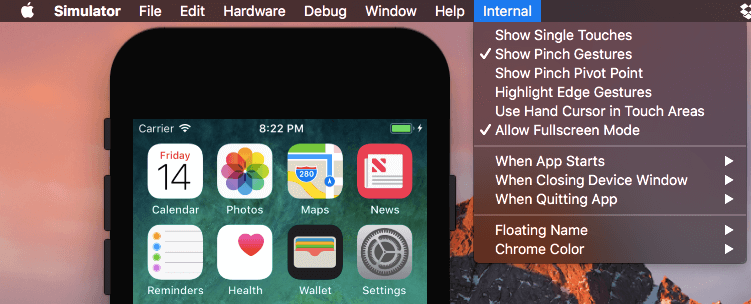
Update: It turned out this feature is disabled by default for some people, but don’t worry, you can always enable it via Apple Internal menu as I described further. If you want to explore more secret features in new Simulator, you should enable Apple hidden Internals menu.
internal-menu
To do so you need to create an empty folder with name “AppleInternal” in the root directory. Just run this command below and restart Simulator:
The new menu item should show up. ☝️
Note: I’ve tested this approach on Simulator from Xcode 9b3. If you don’t have it, please download latest Xcode here.

3. Open Multiple Simulators at Once

Do you remember the frustration of testing your app on different simulators? Previously you were forced to open only one Simulator instance at the time. There were many “hacks” how to open multiple instances of iOS simulator in an older version of Xcode. But finally, with Xcode 9 this feature is available out of the box.

4. Resize Simulator just like a regular window

Before Xcode 9, we had “Scale options” only to adjust simulator’s window size. Now Apple finally made resizing of the Simulator’s window available. It’s useful little detail which can help you organize workspace efficiently if you have multiple simulators opened.

5. Record Video of Simulator

In the official “What’s new” document for Xcode 9, Apple claims that now you can record a video of simulator’s screen. It’s not completely true. You can do it even in the older versions with simctl. I didn’t find any evidence you can enable video recording from the interface though (except for built-in screen recording in iOS 11).

For getting your video file, execute the following command:
booted —  means, that simctl selects currently booted Simulator. In case you have more than one booted Simulator, simctl selects currently active instance.

6. Share files to Simulator right from Finder

Now Simulator has Finder extension which allows you to share files directly from the Finder’s window.

You can do something similar with image/video files using the simctl command below:
It’s nice to have such abilities. However, drag&drop file to the Simulator’s window seems much faster for me.

7. Open URLs on Simulator

This one comes with simctl as well. So you can open custom URL schemes on older Simulators too.

Execute the command below with whatever URL you need:
For the list of all Apple’s URL schemes please check out the documentation..

8. Quickly Find App’s Container Folder

One more command from simctl. You can get app’s container on the file system with a single command. You just need to know app’s bundle identifier and execute the command below:
Or you can make it even faster by opening destination folder in Finder with the opencommand:

9. Launch Your App in Simulator with Command Line Args

With simctl, you can also launch your app from terminal and pass some command line arguments there (you can even setup some environment variables). It can be helpful if you want to add some hidden debug-only behaviour to your app.

The command below help you with that:
You can get these command line arguments from CommandLine.arguments (here is the link to documentation).